LiveChat
  Support
How to Fix ERR_SSL_PROTOCOL_ERROR in Chrome (Client and Server Fixes)
When you try to load a website in Chrome and instead see a stark error page reading “This site can’t provide a secure connection” followed by ERR_SSL_PROTOCOL_ERROR, the browser is telling you something specific: it attempted to establish an encrypted TLS/SSL connection with the server and the handshake failed. No page content loads, because Chrome refuses to transmit anything over a connection it cannot secure.
The good news is that this error is almost always fixable once you know whether the problem lives on your device or on the server. This guide explains exactly what ERR_SSL_PROTOCOL_ERROR means, then walks through both client-side fixes (for visitors who hit the error) and server-side fixes (for site owners whose visitors are blocked).
Key Takeaways
• ERR_SSL_PROTOCOL_ERROR means Chrome could not complete the SSL/TLS handshake with the server, so the secure connection never opened.
• If only you see the error, the cause is usually client-side: a wrong system clock, corrupted cache, an SSL-scanning extension or antivirus, or an outdated Chrome.
• If every visitor sees the error, the cause is server-side: an expired or misconfigured certificate, a missing intermediate certificate, or an unsupported TLS version or cipher.
• Diagnose server issues with tools like SSL Labs and the openssl s_client command to inspect the certificate, chain, and supported protocols.
• Correctly configured hosting with valid certificates and modern TLS prevents this error from ever reaching your visitors.
What does ERR_SSL_PROTOCOL_ERROR actually mean?
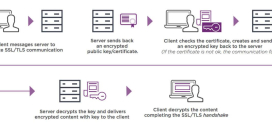
Every HTTPS connection begins with a TLS handshake. Your browser and the web server exchange messages to agree on a protocol version, select a cipher, and validate the site’s SSL certificate before any real data moves. ERR_SSL_PROTOCOL_ERROR appears when that handshake breaks down.
The breakdown can happen for many reasons, but they fall into two buckets. Either your browser sent something the server could not accept (or vice versa), or one side presented a certificate the other could not trust. Because Chrome enforces HTTPS security strictly, it will not fall back to an insecure connection. It simply stops and shows the error.
The single most useful diagnostic question is this: does everyone see the error, or just you? That answer points you to the right half of this guide before you change a single setting.
Here is the rule that saves the most time: if every visitor gets ERR_SSL_PROTOCOL_ERROR, it is a server or certificate problem. If only you get it, it is your device. A failed TLS handshake has two participants, and only one of them is shared by all visitors. The server is common to everyone, so a server-side fault (expired certificate, broken chain, dropped TLS version) shows up universally. Your clock, your cache, and your browser extensions are yours alone, so device-specific faults show up only for you. Test the same URL on a phone over mobile data, or ask a colleague on a different network. If they load it fine, stop touching the server and look at your machine. If they also fail, leave your machine alone and go straight to the server.
How do you fix ERR_SSL_PROTOCOL_ERROR as a visitor? (Client-side)
If the site loads for other people but not for you, work through these client-side fixes in order. Each one targets a common local cause of a broken handshake.
Check your system date and time
This is the most overlooked cause. SSL certificates are valid only within a specific date range. If your computer’s clock is wrong, Chrome may decide the certificate is not yet valid or already expired, and the handshake fails. Set your date, time, and time zone to update automatically, then reload the page. On laptops that have been off for a while or have a dying CMOS battery, this single fix resolves the error surprisingly often.
Clear your browser cache and cookies
A corrupted or stale cached version of the site’s security data can break the connection. In Chrome, open Settings → Privacy and security → Clear browsing data, select Cached images and files and Cookies and other site data, and clear them. Then restart Chrome and try again.
Clear the SSL state
Chrome and your operating system cache SSL certificate decisions. On Windows, open Internet Options → Content → Clear SSL state to flush this cache. This forces a fresh certificate validation on your next visit and clears out any stale or mismatched cached certificate.
Disable conflicting extensions and antivirus SSL scanning
Some browser extensions and many antivirus or security suites intercept HTTPS traffic to scan it, a feature often called HTTPS scanning, SSL scanning, or web shield. When this interception is misconfigured, it can break the handshake. Test in Incognito mode (which disables most extensions by default). If the site loads there, an extension is the culprit, disable them one by one to find it. Separately, temporarily turn off your antivirus’s HTTPS/SSL scanning feature and retry.
Update Chrome and try the QUIC flag
An outdated browser may lack support for the TLS versions or ciphers modern sites require. Go to Settings → About Chrome to install any pending update, then restart. If the error persists, the experimental QUIC protocol occasionally conflicts with certain network configurations. Visit `chrome://flags`, search for Experimental QUIC protocol, set it to Disabled, and relaunch Chrome to test.
How do you fix ERR_SSL_PROTOCOL_ERROR as a site owner? (Server-side)
If your visitors report the error broadly, or you confirmed it appears across multiple devices and networks, the problem is on the server. Your certificate or TLS configuration is failing the handshake for everyone.
Renew an expired or invalid certificate
The most common server-side cause is an expired SSL certificate. Certificates have hard expiry dates, and once that date passes, browsers reject the connection. Check your certificate’s validity dates and renew or reissue it. Also confirm the certificate’s common name or subject alternative names actually match the domain being visited, a mismatch (for example, a certificate for `example.com` served on `www.example.com` without coverage) triggers handshake and trust failures.
Install the complete certificate chain
A frequent and confusing cause is a missing intermediate certificate. A valid certificate relies on a chain that links your domain certificate up to a trusted root through one or more intermediate certificates. If the server sends only the domain certificate and omits the intermediates, many clients cannot build a path to a trusted root and the handshake fails. The fix is to install the full chain (your certificate plus all intermediates) in the correct order on the server.
Update TLS versions and resolve cipher mismatches
Modern Chrome requires modern security. If your server only offers deprecated TLS versions (such as TLS 1.0 or 1.1) or an outdated cipher set, Chrome may refuse to negotiate and the handshake collapses. Configure the server to support TLS 1.2 and TLS 1.3 with a current, secure cipher suite. A cipher mismatch, where the browser and server share no common cipher, produces the same protocol error.
Fix HTTPS, SNI, mixed content, and HSTS configuration
Several configuration faults all surface as this error:
- Server not properly configured for HTTPS: the site is forced to HTTPS (via a redirect) but no valid certificate is bound to the HTTPS virtual host or port.
- SNI issues: on servers hosting multiple sites on one IP, Server Name Indication (SNI) lets the server present the right certificate per domain. If SNI is misconfigured, the wrong certificate, or none, is served.
- Mixed or forced HTTPS without a certificate: forcing HTTPS before a certificate is installed guarantees the error for every visitor.
- HSTS issues: once a site sends an HSTS header, browsers refuse any non-secure fallback. If the certificate then breaks, visitors are locked into the failing HTTPS connection with no way around it until the certificate is fixed.
How do you diagnose the root cause?
Before changing server configuration, gather evidence. Two tools do most of the work.
SSL Labs Server Test scans your domain from the outside and reports the certificate’s validity, the completeness of the chain, supported TLS versions, and cipher strength. It flags a missing intermediate or a deprecated protocol clearly, making it the fastest way to confirm a server-side fault.
The openssl s_client command inspects the handshake directly from the command line:
“` openssl s_client -connect example.com:443 -servername example.com “`
The output shows the certificate chain the server actually sends, the negotiated protocol and cipher, and any verification errors. A line such as `verify error:num=20:unable to get local issuer certificate` is a strong signal of a missing intermediate certificate. Together, these tools tell you whether the certificate is valid, the chain is complete, and the protocol is supported, the three things a successful handshake requires.
Causes and fixes at a glance
| Side | Cause | Symptom | Fix |
|---|---|---|---|
| Client | Wrong system date/time | Only you, after device was off | Enable automatic date/time sync |
| Client | Corrupted cache/cookies | Only you, one site | Clear cache, cookies, and SSL state |
| Client | Extension or antivirus SSL scan | Only you; works in Incognito | Disable extension / HTTPS scanning |
| Client | Outdated Chrome or QUIC conflict | Only you, older browser | Update Chrome; disable QUIC flag |
| Server | Expired or mismatched certificate | All visitors | Renew/reissue; match domain names |
| Server | Missing intermediate certificate | All visitors; some clients only | Install full certificate chain |
| Server | Deprecated TLS or cipher mismatch | All visitors, modern browsers | Enable TLS 1.2/1.3 and modern ciphers |
| Server | HTTPS/SNI/HSTS misconfiguration | All visitors | Bind valid cert; fix SNI; resolve HSTS |
How DarazHost prevents SSL protocol errors
Most server-side instances of ERR_SSL_PROTOCOL_ERROR trace back to how the certificate and TLS stack were set up, exactly the layer your hosting platform controls. At DarazHost, SSL is configured correctly from the start so your visitors never hit a broken handshake.
- Free AutoSSL provisions and auto-renews certificates, so an expired certificate never silently takes your site offline.
- Certificates are installed with the complete chain, including all intermediates, eliminating the single most common cause of universal handshake failures.
- Servers ship with modern TLS (1.2 and 1.3) and current cipher suites enabled, so Chrome and every up-to-date browser negotiate cleanly.
- On VPS plans with full root access, you can tune TLS versions, ciphers, SNI, and HSTS settings yourself when you need granular control.
- Our 24/7 support team helps diagnose and resolve SSL and certificate issues whenever they arise.
If you are launching a new site or migrating one that has struggled with certificate errors, starting on hosting that handles SSL correctly removes the entire server-side half of this problem.
Frequently asked questions
Is ERR_SSL_PROTOCOL_ERROR a virus or a security risk? No. The error is Chrome protecting you by refusing an insecure or unverifiable connection. It does not mean your device is infected. It means the encrypted handshake with that specific server failed, usually due to a configuration or certificate issue rather than malware.
Why do I get the error on only one website? A single affected site usually points to that site’s server, its certificate may be expired, its chain incomplete, or its TLS configuration outdated. If many sites fail at once for you, the cause is more likely on your device, such as a wrong clock, an SSL-scanning antivirus, or an outdated Chrome.
Does clearing cache really fix ERR_SSL_PROTOCOL_ERROR? It can, when the cause is corrupted cached security data on your machine. Clearing the cache, cookies, and SSL state forces Chrome to revalidate the certificate from scratch. It will not help if the underlying problem is on the server, no amount of local clearing fixes an expired certificate.
How do I know if it is a client-side or server-side problem? Open the same URL on a different device and network, such as a phone on mobile data. If the site loads there, the problem is your original device (client-side). If it fails everywhere, the problem is the server (server-side).
Can an expired certificate cause this error for everyone? Yes. An expired certificate is one of the most common server-side causes, and because the certificate is shared by all visitors, every browser that values the date range will reject the connection until it is renewed.