LiveChat
  Support
Linux Virtual Machine: What It Is and How to Run One
A Linux virtual machine is one of the most useful tools any developer, sysadmin, or curious learner can have. It lets you run a complete, isolated Linux computer inside the operating system you already use — without touching your physical hardware, repartitioning your disk, or risking your main system. Whether you want to learn Linux, build a safe test lab, run Linux-only software on Windows or macOS, or understand the technology behind every VPS on the internet, it all starts with understanding what a Linux VM actually is and how to use one well.
This guide breaks down virtualization in plain language: what a Linux VM is, how a hypervisor works, why you’d run one, how to set one up, and how a VM differs from containers and dual-booting. It is part of our broader Linux server administration guide.
Key Takeaways
• A Linux virtual machine is a complete virtual computer that runs its own Linux operating system on top of a host machine, fully isolated from it.
• A hypervisor is the software layer that creates VMs by abstracting the host’s physical hardware (CPU, RAM, disk) into virtual resources.
• VMs let you try Linux without dual-booting, build isolated dev/test environments, and run Linux apps on any host OS.
• The most underrated feature is the snapshot — freeze the entire machine state and roll back instantly, turning the VM into a consequence-free sandbox.
• A VPS is a Linux virtual machine running in a professional data center that you rent instead of hosting on your own hardware.
What is a Linux virtual machine?
A Linux virtual machine is a fully functional computer that exists entirely in software. It runs its own copy of a Linux operating system — a distribution like Ubuntu, Debian, Fedora, or AlmaLinux — complete with its own kernel, its own file system, its own network interfaces, and its own running processes. From inside the VM, Linux behaves exactly as if it were installed on a dedicated physical machine. It does not know, and does not need to know, that it is virtual.
The key word is isolation. The VM is sealed off from the host — the real, physical computer it runs on. The host might be a Windows laptop, a Mac, or another Linux machine. The guest Linux system inside the VM gets its own slice of virtual hardware and cannot directly see or interfere with the host’s files, applications, or settings (unless you deliberately set up shared folders or networking). If something goes badly wrong inside the VM, your real computer is untouched.
In practical terms, a Linux VM appears as a window on your desktop (or a remote session over the network) showing a Linux desktop or terminal. Inside that window is, for all intents and purposes, a separate computer.
How does virtualization work?
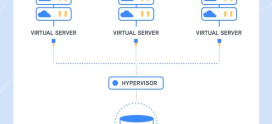
Virtualization is made possible by a piece of software called a hypervisor. The hypervisor’s job is to take the host’s real, physical hardware — processor cores, memory, storage, network cards — and abstract it into virtual hardware that it then hands out to one or more virtual machines. Each VM thinks it has its own dedicated CPU, RAM, and disk, but in reality the hypervisor is carving up and scheduling access to the host’s shared physical resources behind the scenes.
There are two broad categories of hypervisor:
- Type 1 (bare-metal): The hypervisor runs directly on the physical hardware, with no host operating system underneath it. This is what powers cloud platforms and data centers because it is fast and efficient. KVM (on Linux) and enterprise platforms fall into this category.
- Type 2 (hosted): The hypervisor runs as an application inside a normal operating system. When you install VirtualBox or VMware on your Windows or Mac desktop, you’re using a Type 2 hypervisor. It’s slightly less efficient but far easier to set up for personal use.
Either way, the result is the same: a self-contained Linux environment running on hardware it shares with — but is isolated from — everything else.
Why run a Linux virtual machine?
There are several compelling reasons to run a Linux virtual machine, and most people end up using one for more than a single purpose:
- Learn Linux without dual-booting. You can try Linux on your existing Windows or Mac computer without repartitioning your hard drive or risking your main OS. If you don’t like it, you delete the VM and move on.
- Isolated dev and test environments. Developers spin up VMs to mirror production servers, test deployments, or run software with conflicting dependencies — each in its own clean box.
- Run Linux apps on Windows or macOS. Some tools only run on Linux. A VM gives you a real Linux environment on any host.
- Understand servers and VPS hosting. The servers and VPS instances you rent are themselves Linux virtual machines. Learning VMs locally translates directly to managing them remotely.
- Safe experimentation. Thanks to snapshots, you can break things on purpose and recover instantly — which we’ll cover below.
If you’re brand new to the operating system itself, it helps to first understand before diving into virtualization.
How do you run a Linux virtual machine?
There are three common paths to running a Linux VM, depending on where you want it to live and how much hardware you want to manage yourself.
| Option | Best for | Hypervisor type | Notes |
|---|---|---|---|
| VirtualBox (desktop) | Beginners, free local testing | Type 2 (hosted) | Free, cross-platform, runs on Windows/Mac/Linux |
| VMware (desktop) | Developers wanting polish | Type 2 (hosted) | Smooth performance, strong tooling |
| KVM (on Linux) | Linux power users, servers | Type 1 (bare-metal) | Built into the Linux kernel, very efficient |
| Cloud / VPS (rented) | Always-on production workloads | Type 1 (in a data center) | A Linux VM you rent — no hardware to maintain |
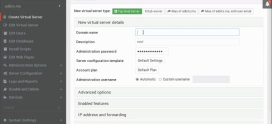
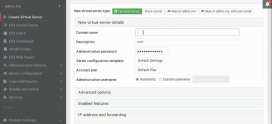
For a desktop VM, the workflow is straightforward: install the hypervisor, download a Linux distribution’s ISO file, create a new virtual machine, allocate it some CPU/RAM/disk, point it at the ISO, and boot. The Linux installer runs exactly as it would on real hardware. If you want a full walkthrough of the OS installation step itself, see our guide on .
For an always-on Linux VM that you can reach from anywhere, a is the rented equivalent — more on that shortly.
What is the most underrated feature of a Linux VM?
The single most underrated feature of a Linux virtual machine — and the reason to use one even if you could install Linux directly on your hardware — is the snapshot: the ability to freeze the VM’s entire state at a single moment and instantly roll back to it later.
That one capability transforms the VM into a consequence-free sandbox. You can run a risky command, test an untrusted package, follow a sketchy tutorial, or deliberately break the system to learn how to fix it — and if it all goes wrong, you restore the snapshot and it’s as if nothing ever happened, in seconds. On real hardware, a serious mistake means hours of reinstalling and reconfiguring. In a snapshotted VM, it means one click.
That safety net fundamentally changes how you learn and experiment. You stop being cautious and start being curious, because there’s nothing to lose. It’s also exactly why VMs power dev and test environments across the industry, and why your VPS — itself a VM — can be snapshotted before a risky upgrade or configuration change. The VM isn’t just “Linux in a window.” It’s Linux with an undo button for the entire machine.
How are snapshots used in practice?
A snapshot captures the complete state of the VM — its disk, its memory, its running processes, its configuration — at a point in time. You typically take one right before doing something potentially destructive:
- Before installing unfamiliar software, so you can revert if it misbehaves.
- Before a system upgrade, so a failed update doesn’t leave you with a broken machine.
- Before following a tutorial, so you can practice the same steps repeatedly from a clean baseline.
- When teaching or testing, so each session starts from an identical, known-good state.
Snapshots are not a substitute for proper backups — they live inside the same VM and host. But for fast, local, experiment-and-recover workflows, they are unmatched. This is the feature that makes a VM the ideal Linux learning environment.
What is the difference between a VM and a container?
People often confuse virtual machines with containers, but they solve different problems and isolate at different levels.
| Aspect | Virtual machine | Container |
|---|---|---|
| What it virtualizes | Full hardware + its own OS kernel | The application + dependencies only |
| Kernel | Has its own kernel | Shares the host’s kernel |
| Isolation | Strong (separate OS boundary) | Lighter (process-level) |
| Size / weight | Heavier (gigabytes) | Lighter (megabytes) |
| Boot time | Seconds to minutes | Near-instant |
| Best for | Different OS, strong isolation, full systems | Packaging and scaling individual apps |
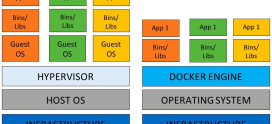
In short: a VM runs a complete operating system with its own kernel, which makes it heavier but gives it stronger isolation and the ability to run a different OS than the host. A container shares the host’s kernel and packages just an application and its dependencies, which makes it lightweight and fast to start but tied to the host kernel. Neither is universally “better” — they’re tools for different jobs, and many real setups use both. For a deeper comparison, see .
VM vs dual-boot: which should you choose?
Dual-booting installs Linux alongside your existing OS on the same physical disk, and you choose which one to run at startup. A VM runs Linux *alongside* your current OS, both at the same time, in a window.
- Dual-boot gives Linux full, direct access to your hardware (best for performance and gaming), but you must reboot to switch between systems, and a partitioning mistake can affect your main OS.
- A VM runs simultaneously with your host OS — copy and paste between them, no reboots — at the cost of some performance overhead, since the host and guest share resources.
For learning, development, and testing, a VM is almost always the better choice because of convenience and the safety of snapshots. For maximum performance on Linux, dual-boot or a dedicated machine wins.
How many resources does a Linux VM need?
A virtual machine doesn’t get hardware for free — it gets an allocation carved out of the host’s physical resources. When you create a VM, you decide how many CPU cores, how much RAM, and how much disk space to assign to it. The host needs enough left over to keep running smoothly.
As a rough starting point, a lightweight Linux server VM can run comfortably on 1-2 virtual CPUs, 1-2 GB of RAM, and 20 GB of disk, while a Linux desktop environment benefits from more. The more you allocate, the better the guest performs — but the less the host has for itself. Over-committing resources to a VM is one of the most common reasons a host machine feels slow.
This trade-off disappears when you rent a VM in the cloud, because the data center hardware is separate from your own machine entirely.
A production-grade Linux VM without the hardware
If you need a Linux virtual machine that is always on, reachable from anywhere, and backed by professional infrastructure, DarazHost Linux SSD VPS is built for exactly that. It is itself a virtual machine running in a professional data center, giving you a real, always-on Linux VM with guaranteed resources, full root access, your choice of distribution, and snapshot support on supported plans. It’s the production-grade Linux virtual machine your projects need — without running it on your own hardware — backed by 24/7 support.
How does a VPS connect to all of this?
Here’s the part that ties everything together: a VPS is a Linux virtual machine. When you rent a Virtual Private Server, you’re renting a virtual machine running on a powerful host in a data center, managed by a Type 1 hypervisor. It has its own Linux OS, its own root access, its own isolated resources, and — on many platforms — its own snapshot capability.
Everything you learn running a VM on your desktop applies directly to managing a VPS: the same distributions, the same commands, the same isolation model, the same snapshot-before-you-experiment discipline. The only difference is that the VPS runs on someone else’s professional hardware, is always online, and is reachable over the internet. That’s why understanding the local Linux VM is the perfect on-ramp to running real servers. To go further, explore the full Linux server administration guide.
Frequently asked questions
Is a Linux virtual machine free to run? Yes — the hypervisors most beginners use (such as VirtualBox) and virtually all Linux distributions are free. The only “cost” is the host hardware resources the VM consumes. A rented cloud VM (VPS) is paid because you’re renting someone else’s always-on hardware.
Will a Linux VM slow down my computer? Only while it’s running, and only by the amount of CPU, RAM, and disk you allocate to it. A well-sized VM on a modern machine runs smoothly. Over-allocating resources to the VM, leaving too little for the host, is the usual cause of slowdowns.
Can I run a Linux VM on Windows or a Mac? Yes. A Type 2 hypervisor like VirtualBox or VMware runs on Windows, macOS, and Linux as a normal application, letting you run a full Linux guest inside any of them.
Is a virtual machine the same as a container? No. A VM includes a complete operating system with its own kernel and offers stronger isolation, while a container shares the host’s kernel and packages only an application and its dependencies, making it lighter and faster to start.
Can I undo changes in a Linux VM? Yes — this is the snapshot feature. Take a snapshot before making changes, and if anything goes wrong you can roll the entire machine back to that exact state in seconds, as if the changes never happened.