LiveChat
  Support
Linux Command Cheat Sheet by Task: How Do I Do X?
Most Linux cheat sheets are organized by command — a giant alphabetical list of `ls`, `grep`, `awk`, and their forty flags each. That layout is great when you already know the tool’s name. It is useless when you are staring at a terminal thinking *”how do I just find which process is hogging the CPU?”*
This cheat sheet flips the organization. Instead of grouping by command, it groups by task. You start with the goal in plain English — *”I want to find a file by name”* — and the table hands you the command that does it. Think of it as a recipe book sorted by the dish you want to cook, not by ingredient.
Key Takeaways
• This is a task-first reference: look up what you want to *do*, get the command that does it.
• The fastest engineers don’t memorize every flag — they memorize the task-to-command mapping and look up the rest.
• Tables are grouped by goal: files and search, system and resources, networking, users and permissions, services, and archives and transfer.
• Need the traditional category-by-category reference instead? See our companion .
• Every command here runs on a standard Linux server you reach over SSH — perfect for practising on a VPS.
If you instead want the classic command-by-command breakdown (every flag of `ls`, every option of `tar`), read our . The two pages are designed to complement each other: that one is your dictionary, this one is your phrasebook.
How do I work with files and search their contents?
The single most common reason people open a terminal is to locate something — a file, a folder, or a line of text buried inside thousands of files. These recipes cover finding by name, finding by size, and searching inside files.
| I want to… | Command | Note | ||
|---|---|---|---|---|
| Find a file by name | `find / -name “config.yml”` | Searches the whole tree from `/`; narrow the path to go faster. | ||
| Find files by pattern | `find . -name “*.log”` | `.` means “start in the current directory.” | ||
| Find a file fast (indexed) | `locate config.yml` | Instant, but uses a database; run `updatedb` to refresh it. | ||
| Search for text inside files | `grep -r “timeout” /etc/` | `-r` recurses into subdirectories. | ||
| Search and show line numbers | `grep -rn “ERROR” .` | `-n` prints the line number of each match. | ||
| Search ignoring case | `grep -ri “warning” .` | `-i` makes the match case-insensitive. | ||
| Find the biggest files/folders | `du -ah . \ | sort -rh \ | head -n 10` | Lists the 10 largest items in the current directory. |
| Show a directory’s total size | `du -sh /var/log` | `-s` = summary, `-h` = human-readable (MB/GB). | ||
| Count lines in a file | `wc -l access.log` | Handy for log volume at a glance. | ||
| Show the first/last lines of a file | `head -n 20 file` / `tail -n 20 file` | Add `-f` to `tail` to follow a live log. |
Speed tip: `find` walks the filesystem in real time (accurate but slower), while `locate` reads a prebuilt index (instant but possibly stale). Use `find` when correctness matters, `locate` when speed matters.
How do I check system resources and manage processes?
When a server feels slow, you need answers in seconds: *Is the disk full? Is memory exhausted? What’s pinning the CPU?* These commands give you that triage view and let you act on it.
| I want to… | Command | Note | |
|---|---|---|---|
| Check free disk space | `df -h` | `-h` shows sizes in GB/MB per mounted filesystem. | |
| See what’s eating disk space | `du -sh /*` | Summarizes each top-level directory; run as root for full visibility. | |
| Check available memory | `free -h` | Look at the available column, not just free. | |
| See live CPU and process usage | `top` | Built in everywhere; press `q` to quit. | |
| See a nicer interactive monitor | `htop` | Color, scrolling, mouse support — install it if you can. | |
| List all running processes | `ps aux` | The classic full snapshot of every process. | |
| Find a specific process | `ps aux \ | grep nginx` | Filters the process list to matching lines. |
| Kill a process by PID | `kill 1234` | Sends a polite termination signal first. | |
| Force-kill a stuck process | `kill -9 1234` | The `-9` (SIGKILL) cannot be ignored — use as a last resort. | |
| Kill a process by name | `pkill nginx` | Targets every process matching the name. | |
| Show system uptime and load | `uptime` | Three load numbers = 1, 5, and 15-minute averages. |
Triage order that works: check `df -h` (disk) first — a full disk causes the weirdest failures — then `free -h` (memory), then `top` (CPU). Most “the server is broken” incidents resolve at one of those three.
The real cheat code isn’t memorizing flags — it’s memorizing the task-to-command mapping. Experienced admins rarely recall every option of `find` or `tar` from memory; they recall *which command solves which problem* and then look up the specific flag in seconds. The flag is a detail you can always find in `man find` or `tldr find`. The mapping — “checking what’s using a port means `ss` or `lsof`” — is the knowledge that makes you fast, because it removes the slow step: not knowing where to even start. Bookmark the recipe, not the man page. That single habit shift is the difference between fumbling and flow.
How do I diagnose networking from the command line?
Networking problems are where the command line earns its keep. *Is the port open? Can this box reach the internet? What process is bound to 443?* These recipes answer the questions that come up during every deployment and outage.
| I want to… | Command | Note | |
|---|---|---|---|
| See what’s using a port | `ss -tulpn \ | grep :443` | Modern replacement for `netstat`; shows the owning process. |
| See what’s using a port (alt) | `lsof -i :443` | Lists every process with that port open. | |
| List all listening ports | `ss -tulpn` | `t`=TCP, `u`=UDP, `l`=listening, `p`=process, `n`=numeric. | |
| Test if a host is reachable | `ping -c 4 example.com` | `-c 4` sends four packets then stops. | |
| Test an HTTP endpoint | `curl -I https://example.com` | `-I` fetches headers only — quick status-code check. | |
| Download a file | `curl -O https://site/file.zip` | `-O` saves with the remote filename. | |
| Find my public IP address | `curl ifconfig.me` | Returns the IP the outside world sees. | |
| Show my local IP addresses | `ip addr` | Or the shorter `ip a`. | |
| Trace the route to a host | `traceroute example.com` | Shows each hop; useful for latency hunting. | |
| Look up DNS records | `dig example.com` | Add `+short` for a clean, scriptable answer. |
Why `ss` over `netstat`: `netstat` is deprecated on most modern distributions and may not be installed. `ss` is faster, ships by default, and uses nearly identical flags. Learn `ss` once and you’re future-proof.
How do I manage users, ownership, and permissions?
Permissions are where many beginners get stuck — a script won’t run, a file won’t save, a deploy fails with “Permission denied.” These commands tell you *who you are* and let you fix *who can do what*.
| I want to… | Command | Note |
|---|---|---|
| See who I’m logged in as | `whoami` | Returns your current username. |
| See who else is logged in | `who` | Lists active sessions on the machine. |
| Run a command as root | `sudo command` | Prompts for your password; the standard way to elevate. |
| Switch to another user | `su – username` | The `-` loads that user’s full environment. |
| Make a file executable | `chmod +x script.sh` | Adds execute permission for everyone. |
| Set exact permissions | `chmod 644 file` | `644` = owner read/write, others read-only. |
| Change a file’s owner | `chown user:group file` | Sets both owner and group at once. |
| Change ownership recursively | `chown -R user:group dir/` | `-R` applies to every file inside `dir/`. |
| View a file’s permissions | `ls -l file` | The leading `-rwxr-xr-x` block is the permission map. |
| Add a user to a group | `usermod -aG docker user` | `-aG` *appends* — forgetting `-a` wipes other groups. |
The `chmod` number trick: read = 4, write = 2, execute = 1. Add them per role (owner, group, others). So `chmod 755` means owner = 4+2+1 = 7 (all), group and others = 4+0+1 = 5 (read + execute). Once that clicks, you’ll never reach for `chmod` documentation again.
How do I control services and read their logs?
On modern Linux servers, systemd runs almost everything — web servers, databases, your own apps. These commands start, stop, and inspect those services, plus pull the logs when something misbehaves.
| I want to… | Command | Note |
|---|---|---|
| Check a service’s status | `systemctl status nginx` | Shows running state plus the last few log lines. |
| Start a service | `systemctl start nginx` | Starts it now (needs `sudo`). |
| Stop a service | `systemctl stop nginx` | Stops it now. |
| Restart a service | `systemctl restart nginx` | Stop then start — the usual “apply config” move. |
| Reload config without downtime | `systemctl reload nginx` | Re-reads config where the service supports it. |
| Enable a service at boot | `systemctl enable nginx` | Survives reboots. |
| List all running services | `systemctl list-units –type=service` | The full active-service inventory. |
| View a service’s logs | `journalctl -u nginx` | Scoped to one unit. |
| Follow logs live | `journalctl -u nginx -f` | `-f` streams new entries as they happen. |
| View logs since boot | `journalctl -b` | Everything since the last boot. |
Status before action: always run `systemctl status
How do I compress archives and transfer files between servers?
Backups, deployments, and migrations all come down to packaging files and moving them across machines. These recipes cover `tar` for archives and `scp`/`rsync` for transfer over SSH.
| I want to… | Command | Note |
|---|---|---|
| Compress a folder | `tar -czf backup.tar.gz dir/` | `c`=create, `z`=gzip, `f`=filename. |
| Extract an archive | `tar -xzf backup.tar.gz` | `x`=extract; same flags, just swap `c` for `x`. |
| List an archive’s contents | `tar -tzf backup.tar.gz` | `t`=list, without extracting. |
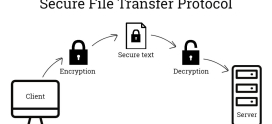
| Copy a file to a remote server | `scp file.txt user@host:/path/` | Secure copy over SSH. |
| Copy a folder to a remote server | `scp -r dir/ user@host:/path/` | `-r` for directories. |
| Sync folders efficiently | `rsync -avz dir/ user@host:/path/` | Transfers only changed parts — ideal for repeat backups. |
| Resume an interrupted transfer | `rsync -avzP src/ dest/` | `-P` shows progress and resumes partial files. |
| Mirror a directory exactly | `rsync -avz –delete src/ dest/` | `–delete` removes files at the destination that no longer exist in source. |
`scp` vs `rsync`: use `scp` for a quick one-off copy. Use `rsync` for anything you’ll repeat — it transfers only the differences, so the second run of a backup takes seconds instead of minutes.
Run these on a real server with DarazHost
Reading commands is one thing; building muscle memory is another. The fastest way to internalize this cheat sheet is to run every recipe on a live server you control — break things, fix them, and watch real output instead of examples.
DarazHost offers VPS and dedicated servers with full root access over SSH, so you can practise every command on this page against a real Linux environment — no shared-hosting restrictions, no locked-down shells. Spin up a server, connect with one `ssh` command, and you have a complete playground for `systemctl`, `journalctl`, `rsync`, and the rest.
What you get with DarazHost:
- Full root / SSH access — run privileged commands (`sudo`, `systemctl`, `chown -R`) without restriction.
- Reliable, high-uptime infrastructure — a stable box to learn on and to run production workloads on.
- 24/7 expert support — stuck on a permissions error or a service that won’t start? Real humans help.
- Scalable VPS and dedicated plans — start small for practice, scale up when your project grows.
Whether you’re learning the command line or administering production servers, a DarazHost VPS gives you the real terminal these recipes were written for.
Frequently asked questions
What’s the difference between this and a regular Linux commands cheat sheet?
A regular cheat sheet is organized by command — it lists each tool and all its options, which is ideal when you already know the command’s name. This one is organized by task: you start with what you want to *do* (“find a file,” “check a port”) and it gives you the command. For the command-by-command reference, see our .
How do I see what process is using a specific port?
Run `ss -tulpn | grep :PORT` (for example `ss -tulpn | grep :80`). The output includes the process name and PID bound to that port. The alternative `lsof -i :80` does the same thing. `ss` is the modern, preinstalled replacement for the older `netstat`.
How do I safely kill a process that won’t respond?
First try `kill PID`, which sends a polite SIGTERM asking the process to shut down cleanly. If it ignores that, use `kill -9 PID` to send SIGKILL, which the kernel enforces and the process cannot block. Reserve `-9` for genuinely stuck processes, because it skips cleanup and can leave temp files or locks behind.
Do I really need to memorize all these commands?
No — and that’s the whole point. Memorize the task-to-command mapping (which command solves which problem) and look up specific flags as you need them with `man
Where can I practise these commands safely?
On a server you fully control, ideally one separate from anything in production. A VPS with root SSH access is the standard choice — you get a real Linux environment to experiment in, and if you break something you can rebuild it. DarazHost VPS plans give you exactly that kind of sandbox.